
Create a campaign
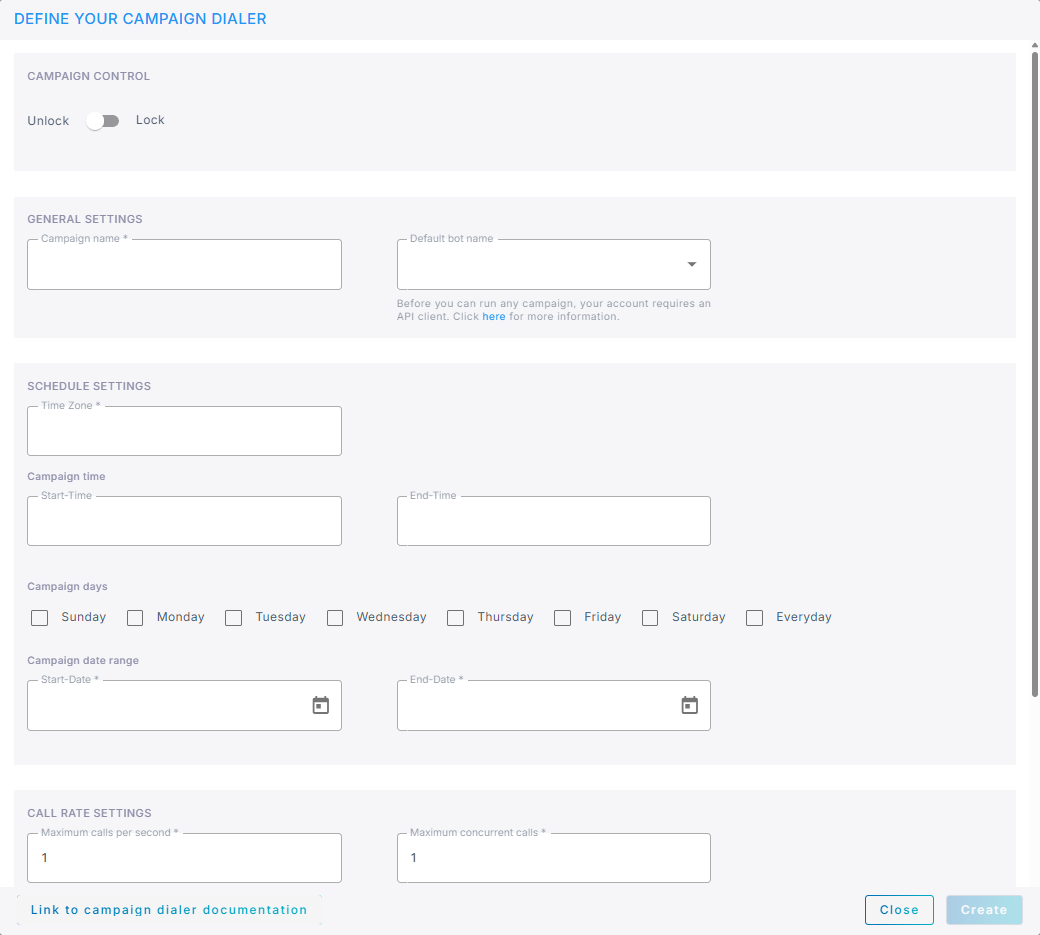
You create a campaign on a single form with five sections: the state the campaign starts in, its name and bot, when it may call, at what rate, and what to do when a call does not reach a person.
A new campaign has no one to call yet. You add its targets afterwards, by editing the campaign.
To create a campaign:
-
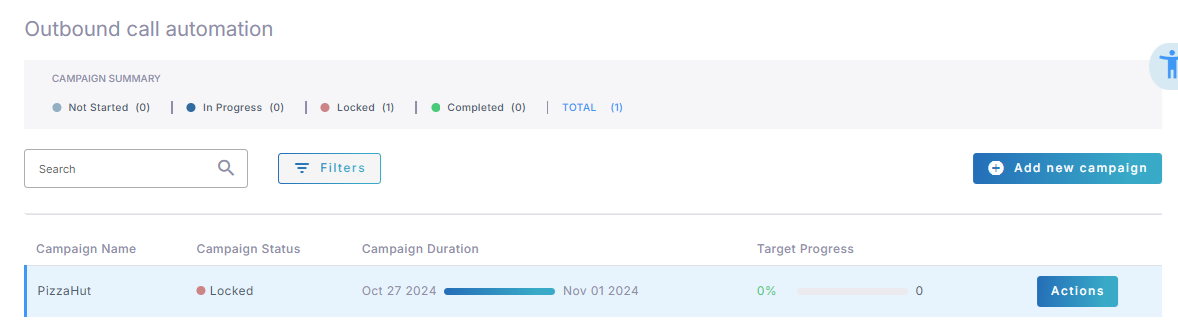
In the Navigation pane, expand Hub+, and select Outbound automation.
-
Click Add new campaign.
-
Under Campaign Control, leave the toggle on Unlock, the default, so that the campaign starts calling once it has targets and its start date arrives. Set it to Lock to create the campaign in a dormant state.
-
Under General Settings:
- In the 'Campaign name' field, enter a name. Live Hub rejects a name that is already taken, and the name cannot be changed once the campaign exists.
-
Optional: From the 'Default bot name' drop-down list, select the bot that handles the calls. Each target can name its own bot, which overrides this one. If you leave this field empty, every target must name a bot.
Only bots with outbound calling enabled can be used in a campaign.
-
Under Schedule Settings:
-
From the 'Time Zone' drop-down list, select the time zone the times and dates below are read in, for example America/New_York.
Once the campaign has enabled targets, the time zone is fixed.
-
Under Campaign time, set 'Start-Time' and 'End-Time', the daily window in which calls may be placed.
- Under Campaign days, select the days of the week the campaign runs on, or Everyday.
- Under Campaign date range, set 'Start-Date' and 'End-Date'. Neither can be in the past.
-
-
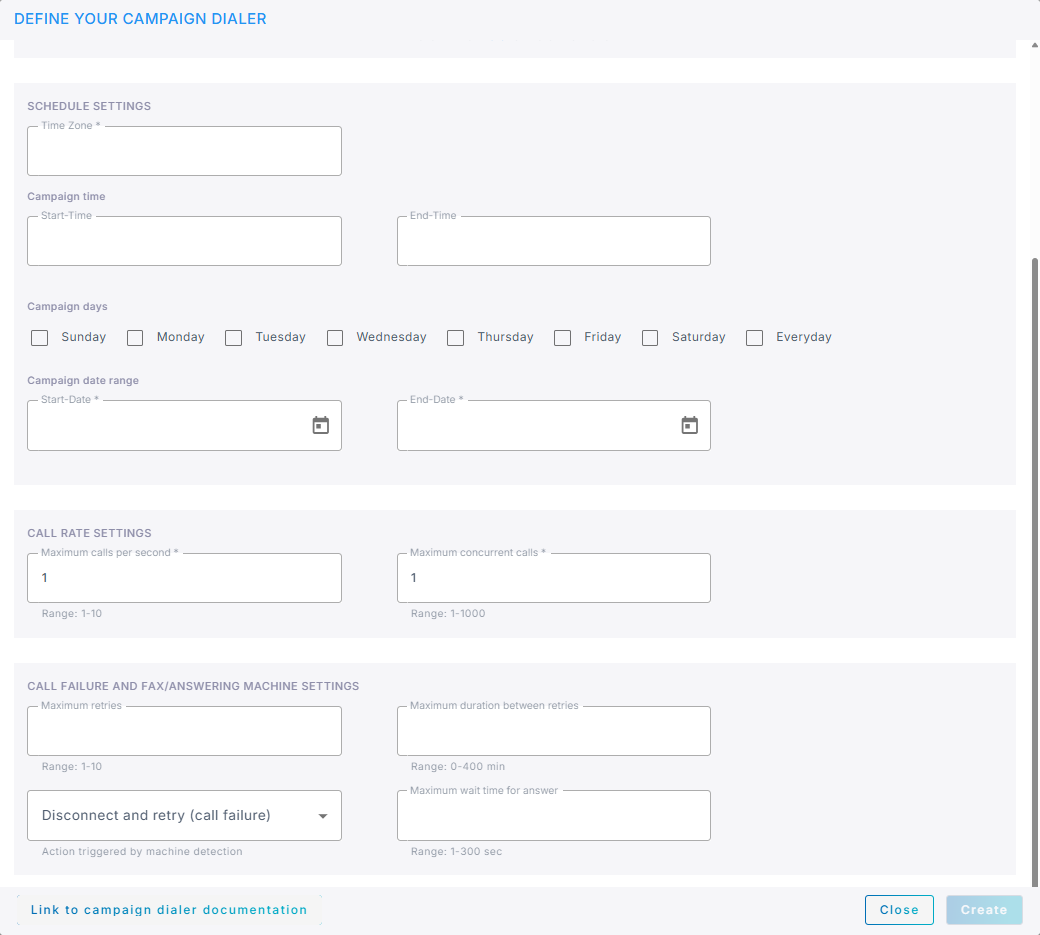
Under Call Rate Settings, set the rate at which the campaign places calls:
- 'Maximum calls per second' accepts a value from 1 to 10.
- 'Maximum concurrent calls' accepts a value from 1 to 1000.
Your account's own call limits still apply. A campaign cannot exceed them, whatever you set here. See Configure call limits.
-
Under Call Failure and Fax/Answering Machine Settings, decide what happens when a call does not reach a person:
- 'Maximum retries' sets how many further attempts to make on a number, from 1 to 10.
- 'Maximum duration between retries' sets the number of minutes to leave between attempts, from 0 to 400.
- 'Maximum wait time for answer' sets the number of seconds to wait for an answer, from 1 to 300.
-
'Action triggered by machine detection' determines what happens when a fax or an answering machine answers:
Option What happens Disconnect and retry (call failure) The call is dropped and the number is retried later. The default. Ignore and transfer the call to bot The call goes to the bot regardless of what answered. Disconnect when fax answers. Transfer to bot when answering machine answers. A fax is dropped; an answering machine is passed to the bot.
-
Click Create.
The campaign appears in the list, with no targets and a Not Started status. Add the people to call next. See Manage targets.